
A USB-C socket tells you what the plug looks like, not whether your laptop will charge from a monitor or send it a picture. If you work at a desk and keep taking the laptop to meetings, this is often a more expensive mistake than choosing the wrong screen size. These three 14-inch Windows configurations solve different versions of that problem. The comparison uses published specifications, not measured performance or battery tests.
Check the cable path before the processor
| Model | RAM / SSD | Built-in screen | Desk connection | MY reference |
|---|---|---|---|---|
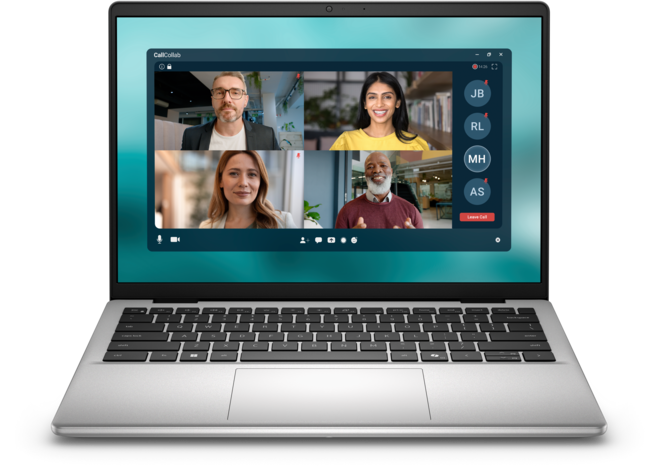
| Dell 14 DC14250 | 8 GB / 512 GB | 1920 × 1200 | USB-C with DP and PD | RM4,083.82 |
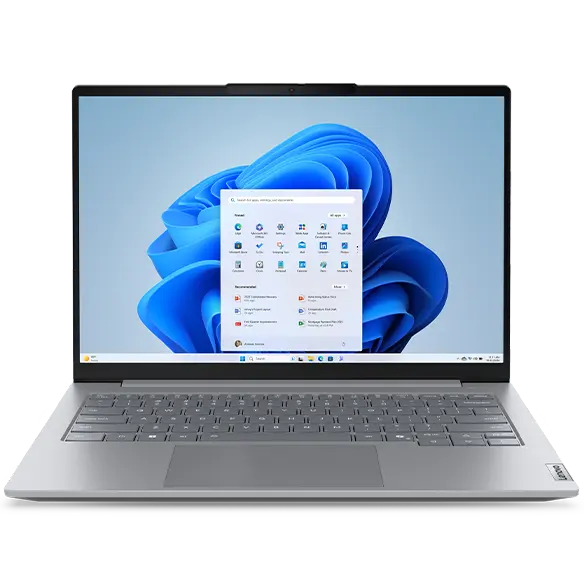
| ThinkBook 14 Gen 8 | 16 GB / 256 GB | 1920 × 1200 | Thunderbolt 4, USB-C, Ethernet | RM4,599 |
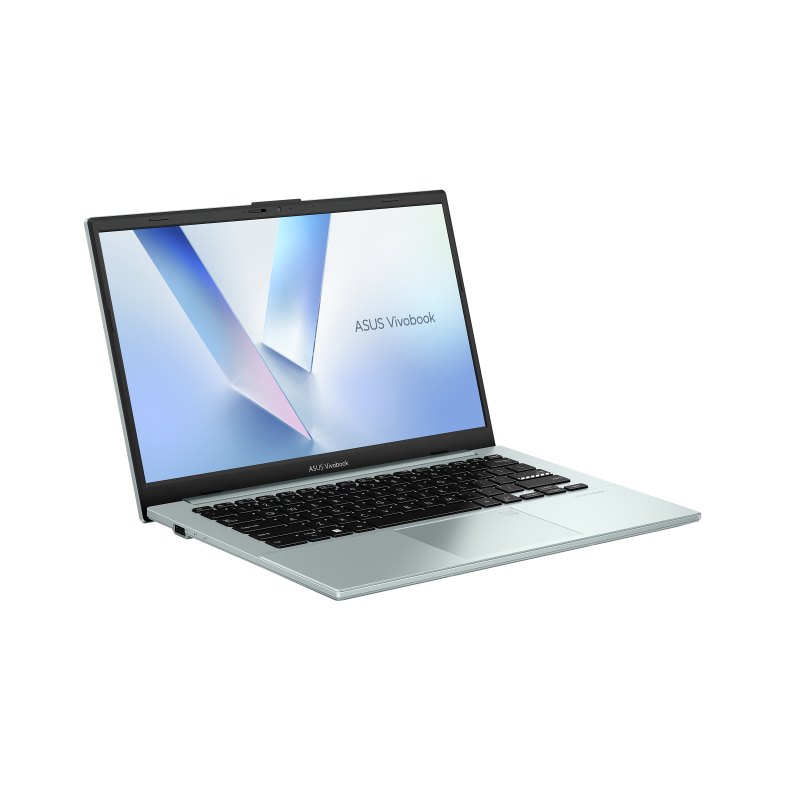
| Vivobook Go 14 | 16 GB / 512 GB | 1920 × 1080 | HDMI, separate power | RM2,999 |
Take a photo of your monitor’s input labels and read the dock’s specifications. Look for video input and USB Power Delivery separately, and check the power rating and cable. A regular USB-C data lead is not a guarantee of video. If you already have an HDMI screen and don’t mind connecting power separately, you may not need a dock at all.
The pros and cons of each desk setup
Dell 14 DC14250: Dell specifies DisplayPort and Power Delivery on its USB-C port. It also puts a limit on this configuration’s HDMI port: 1920 × 1080 at 60 Hz. If you use a higher-resolution monitor, check the monitor’s DisplayPort input and a suitable USB-C connection rather than planning around HDMI. The 512 GB SSD is useful for keeping project files offline, but the quoted Core 5 model ships with only 8 GB of RAM. It is not the configuration I’d choose for several large spreadsheets plus calls and a busy browser.
Lenovo ThinkBook 14 Gen 8: This Intel Core Ultra 5 225H version is the strongest fit here if the desk also needs wired networking. Lenovo lists RJ-45, HDMI, USB-C with display and charging support, and a separate Thunderbolt 4 port on the IAL chassis. The trade-off in this specific offer is a 256 GB SSD even though you get 16 GB of RAM. Allow for storage if you keep several courses’ video files or sync a large team folder locally. Don’t confuse the 225H configuration with a 225U or with another storage option.
ASUS Vivobook Go 14: The Grey Green configuration pairs 16 GB of onboard RAM with a 512 GB SSD at the lowest reference price here. Its store listing names HDMI and a separate DC input but doesn’t confirm video or charging on USB-C. Plan on HDMI and the supplied power setup unless the seller verifies the exact connection you need. Its 1080p, 60 Hz internal panel gives up some vertical space compared with the other two. I’d still pick it for documents and classes if the monitor is already on HDMI.
What I’d pay for
The Dell reference is about RM1,085 above the ASUS cash-and-carry price. Pay that difference only if the verified USB-C connection fits your desk and 8 GB meets your needs. The ThinkBook is roughly RM515 above the Dell; choose it for the extra port flexibility and 16 GB, not because higher price means more storage. These are Malaysian references checked on 19 November 2026, not guaranteed checkout prices. Confirm the exact configuration, postcode delivery and local service route before paying.
Model photos
Malaysia price references (checked 19 Nov 2026): Aidea · Dell Malaysia · Technation · Lenovo technical reference
Pingback: Selalu pindah dari meja ke bilik mesyuarat? Banding tiga laptop Windows 14 inci - Eazy Picks
Pingback: 14 吋 Windows 笔电怎么接办公室屏幕?ASUS、Dell、Lenovo 三款对比 - Eazy Picks